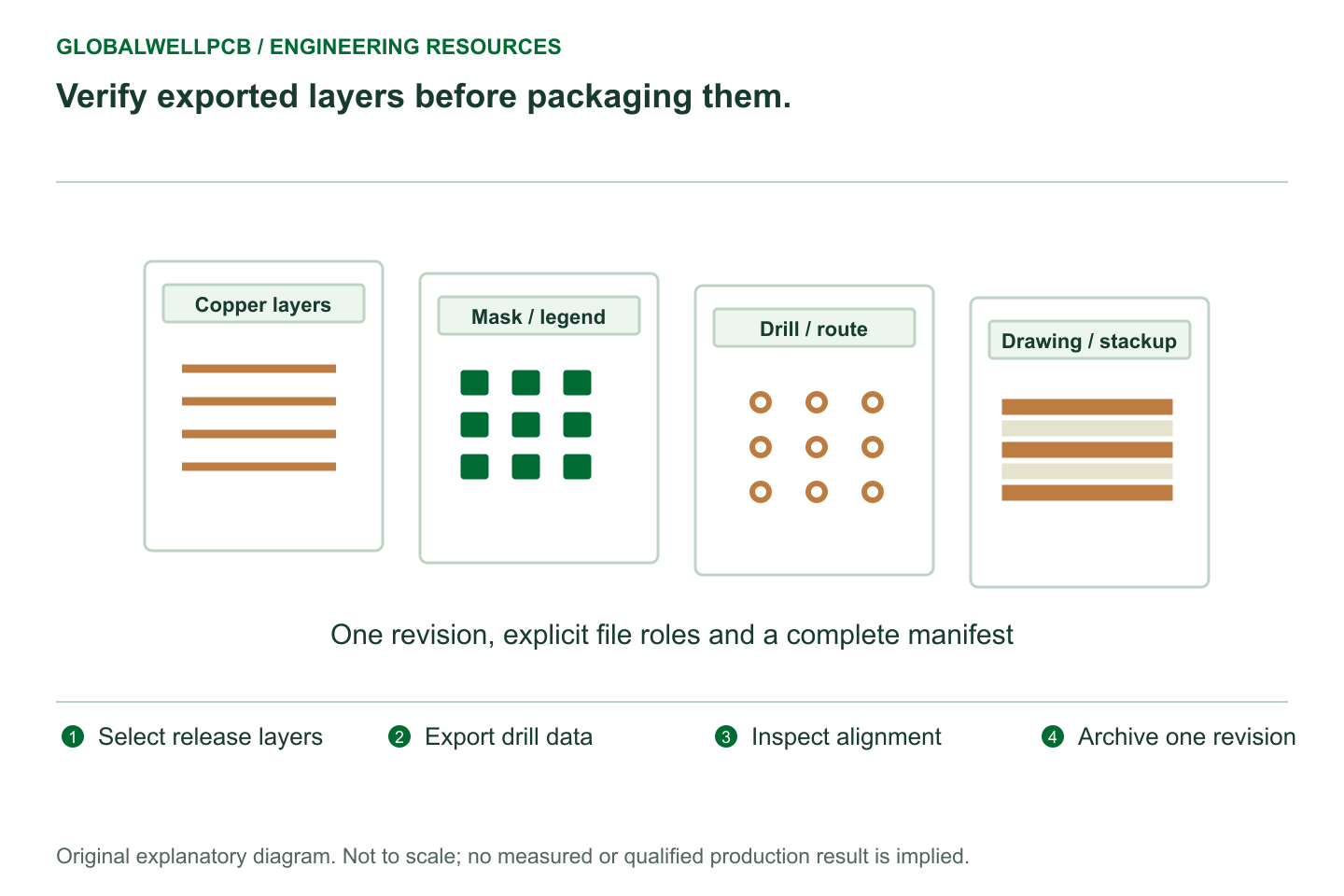
A Gerber release check should compare the exported layers, drill data, board outline, and fabrication instructions as one board revision. Opening each file successfully is only the first check. The more useful question is whether the files describe the same physical board, with the same coordinates and no unresolved conflict about what should be manufactured.
The procedure below is a proposed review workflow for a released manufacturing package. It complements design-rule checking in the CAD tool; it does not replace the fabricator’s process review or the design owner’s electrical verification.
Review a fresh export from a frozen design state
Save the design and resolve the intended design-rule-checking dispositions before generating outputs. Record accepted exceptions so that an intentional exception is distinguishable from a forgotten warning. Export to an empty release directory. Reusing an old output folder can leave an obsolete inner layer or an earlier drill file beside current data.
KiCad 9.0 documents separate plot and drill outputs. Its plot settings include layer selection, coordinate origin, zone-fill checks, and Gerber attributes; the drill settings separately control origin, units, and plated versus non-plated output. These are independent settings worth checking together. KiCad PCB Editor: fabrication outputs and drill files
Capture the export configuration with the release, especially if it differs from the normal project setup. A reviewer should know whether a missing output was deliberately excluded or accidentally omitted. Use the software documentation for the actual version being used; an older tutorial screenshot is not a release requirement.
Establish an expected-file list before opening the viewer
Write down the expected copper-layer sequence, mask layers, legends, outline, and drill spans from the design’s intended construction. Then compare that list with the archive contents. This prevents a viewer’s apparent success from becoming the definition of completeness.
Check that the data contain the intended board outline and cutouts. Identify assembly aids, dimensions, and notes that belong in drawings rather than copper or mask artwork. If two files appear to describe the same feature, establish which one controls it. A duplicated outline is a question to resolve even if the viewer renders it cleanly.
Gerber attributes and meaningful names improve identification, but still compare their meaning with the file index. The Gerber Job specification identifies project revision and file function as distinct data, and explicitly allows missing job characteristics to remain undefined. The presence of a job file therefore does not establish that every requirement has been supplied. Ucamco: Gerber Job Format Specification, revision 2020.01, sections 2.1 and 2.4
Inspect the board in overlays that answer specific questions
Start with the outline and one copper layer. Check overall scale against a known dimension. Add the holes and inspect several widely separated locations, including an asymmetric feature. Then work through the remaining layers in the declared physical order.
An asymmetric location is useful because a symmetric mounting pattern can conceal a mirror or rotation error. Inspect a connector, an off-center slot, or a distinctive hole group. Do not manually drag the drill display into alignment and then assume the source files are correct. Investigate the export or import interpretation that created the disagreement.
Use the following checklist as a sequence of comparisons. Each row should end with either a checked result or a specific question, rather than a general “looks good.”
| Comparison | What to examine | What requires resolution |
|---|---|---|
| Outline against drawing | Units, overall dimensions, cutouts, corners, edge features | Multiple outlines or a dimensioned feature missing from artwork |
| Holes against copper | Registration at connector pins, vias, and isolated holes | Shift, scale change, mirror, or unexpected annular relationship |
| Drill sets against hole table | Plating identity, hole counts by type, slots, layer spans | A combined file that loses required plating identity or a missing span |
| Mask against pads | Intended openings, covered areas, via treatment | A pad opening inconsistent with the drawing or component plan |
| Inner copper against layer map | Physical order, plane interpretation, intended connectivity evidence | An unidentified layer or a plane rendered with an unexpected polarity |
| Package against instructions | Revision, stackup, copper, finish, special processes | Requirements that contradict a file or remain undefined |
The checklist does not set clearance or annular-ring limits. Those limits depend on the selected construction and agreed manufacturing rules.
Distinguish a display problem from a source-data problem
If holes appear misplaced, inspect coordinate units, origins, and drill-format interpretation before altering geometry. A viewer may need a format setting that the data did not clearly convey. The resolution should make the intended interpretation repeatable for the recipient, not merely repair one local screen.
If copper looks unexpectedly solid or empty, check the layer function, polarity interpretation, and actual exported objects. Compare with the CAD view at a distinctive location. A screenshot is useful evidence for the question log, but retain the underlying files so that another reviewer can reproduce the observation.
If a mask opening differs from the design, check the export configuration and local pad or via settings. The correct action may be to regenerate data, update the drawing, or confirm an intentional treatment. Avoid solving every mismatch by editing the exported artwork directly; an undocumented edit breaks the relationship between the design and the release.
Review connectivity evidence without overstating it
A visual overlay can reveal obvious inconsistencies, but it cannot demonstrate that every intended net is connected correctly. When a design-derived netlist or connectivity attributes are provided for CAM comparison, name their source revision and agree how discrepancies will be handled.
Similarly, a clean design-rule report answers the rules that were configured and evaluated. It does not independently establish material suitability, impedance, mechanical fit, or complete electrical-test coverage. Keep these decisions visible in their own review records.
For critical features, choose deliberate samples: the smallest relevant via structure, a plated slot, a dense package breakout, and an edge connector if present. This sampling is an additional human review step, not a substitute for automated full-design checks. Record what was sampled so that the review does not imply exhaustive manual inspection.
Repackage and recheck after a correction
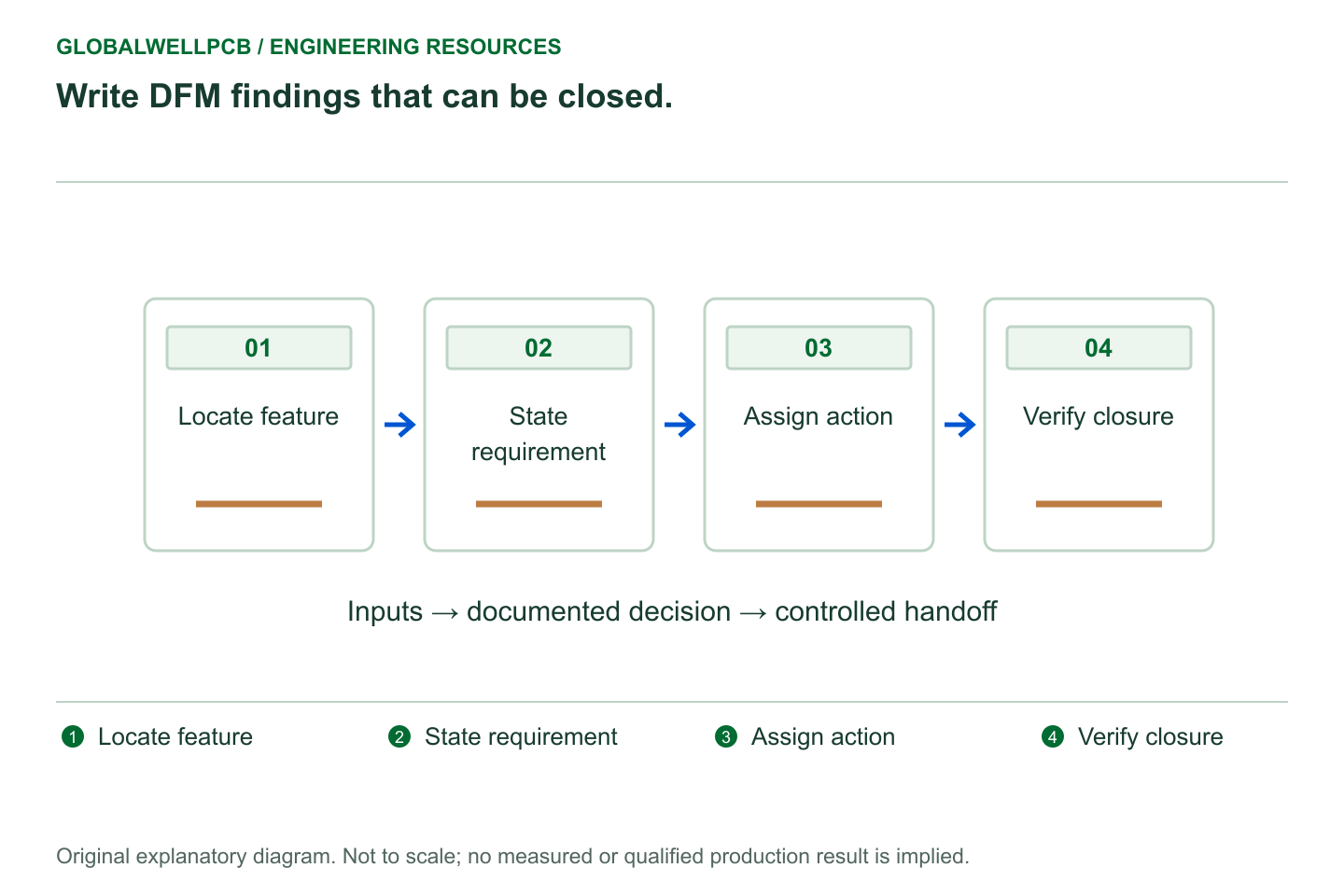
Use a discrepancy log with the observation, affected files, likely interpretation, responsible person, and disposition. Resolve the cause at the appropriate source. After regeneration, check the corrected feature and any other outputs touched by the same setting.
Build the final archive from the approved release directory and reopen that archive in the viewer. This last step checks the object that will actually be transmitted. A perfect working folder is insufficient if the sent ZIP was assembled earlier or contains a superseded file.
Record the archive identity and review disposition with the release. If the fabricator later proposes a CAM change, compare it against this baseline and capture approval. The release check remains useful because it establishes what was sent, what was observed, and which changes were accepted.
References and method
This checklist uses AI-assisted drafting and document review of the named KiCad 9.0 output sections and the Ucamco 2020.01 job-format overview and revision fields. It is not an inspection record for a real board. Manufacturing feasibility, exact acceptance limits, and the recipient’s parser behavior require project-specific confirmation.